
Start Shell Scripting in a Browser Terminal
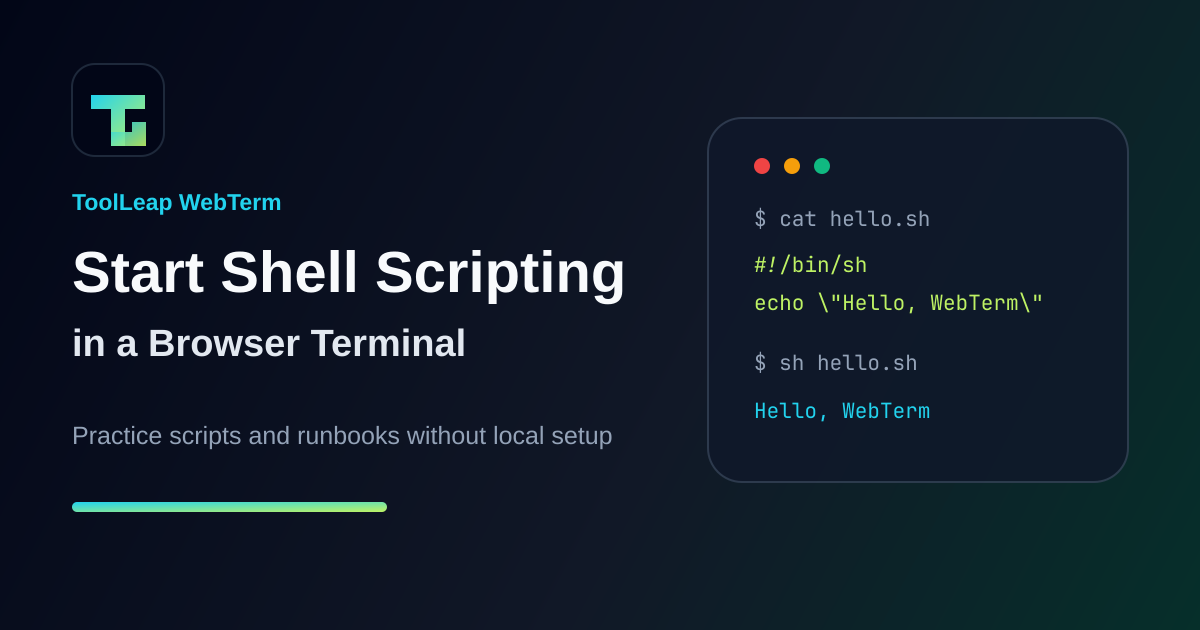
Shell scripting is one of the fastest ways to turn repeated terminal commands into a small tool.
You do not need a complex setup to start. A text editor, a shell, and a safe terminal environment are enough. If you are not on a Linux machine, you can practice directly in ToolLeap WebTerm.
Create your first shell script
Create a file named hello.sh:
#!/bin/sh

echo "Hello from a shell script"
Make it executable:
chmod +x hello.shRun it:
./hello.shYou should see:
Hello from a shell scriptPractice in a browser terminal
If you want to try shell commands without preparing a local Linux environment, open WebTerm:
A browser terminal is useful when you want to test a command from documentation, teach a teammate, reproduce a support case, or experiment from a locked-down workstation.
A more useful example
Here is a tiny script that checks the public IP address of the current environment:
#!/bin/sh

set -eu

PUBLIC_IP="$(curl -s https://ip.toolleap.com)"
echo "Public IP: ${PUBLIC_IP}"
This is the kind of small script that can become part of a support checklist, deployment note, or CI runner diagnostic.
What to practice next
- Read arguments with
$1,$2, and$@. - Use
set -euso scripts fail early when something is missing. - Check command exit codes before continuing.
- Wrap repeated deployment or diagnostic commands in small scripts.
- Keep scripts simple enough that another engineer can debug them quickly.
Where WebTerm fits
WebTerm is a ToolLeap browser-native terminal. It is useful for quick Linux practice, but the larger idea is platform tooling: controlled terminal access, repeatable developer workflows, training environments, support sessions, demos, and future agent/tool runtimes.
If your product needs controlled browser terminals for teams, labs, support workflows, customer-owned code, or AI agents that execute tools safely, that becomes an AI platform engineering problem.
For a concrete conversation about controlled terminal workflows or platform tooling, contact ToolLeap.